How do I get started?
Sign-up : Visit http://reg.oneport.com/ and sign up for the service.
Login: Visit https://ero.oneport.com. Enter your Company ID, User ID & Password. Then, click Submit to log into the system. Do the following steps:
If you are holding an original bill of lading, please read Question 2 of this System Guide;
If you are holding a sea waybill or a telex release bill of lading, please read Question 3.
Forward to Trucking: please refer to Question 12.
If the above easy steps do not address all your needs, please read the rest of this guide.
I am holding an original bill of lading. How do I obtain an eRO from my shipping line?
Please liaise with your shipping line and deliver the original bill to the liner first (but without waiting at the service counter for return of any documents). After that, you can continue to do the rest of the procedures on eRO platform.
Obtain eRO on eRO platform:
Login: Visit https://ero.oneport.com. Enter your Company ID,User ID & Password. Then, click Submit to log into the system.
Import Shipment:
Click Import Shipment under My Shipment tab.
- Click Liner or Forwarder. Then, select the liner/ the forwarder from pull-down menu.
If you choose ‘Liner’:
For import of single shipment, please enter bill of lading no. and any one of container nos. in order to import the entire bill. For multiple shipments, click Choose File to select an excel or text file to be imported. Click Upload button. Click Submit.
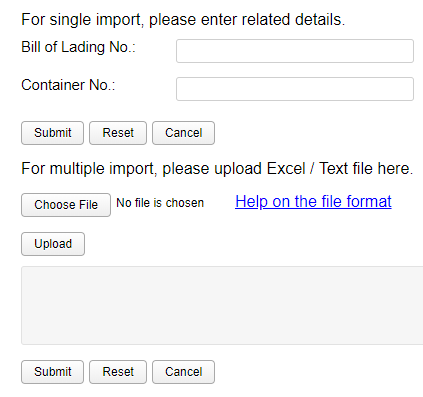
Click Import for preparing LOI.
If you choose ‘Forwarder’:
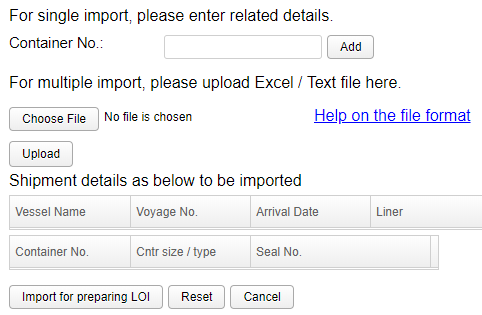
For import of single shipment, please enter the container no and click Add (please add all containers one-by-one). For multiple shipments, click Choose File to select an excel or text file to be imported. Click Upload button. Click Import for preparing LOI.
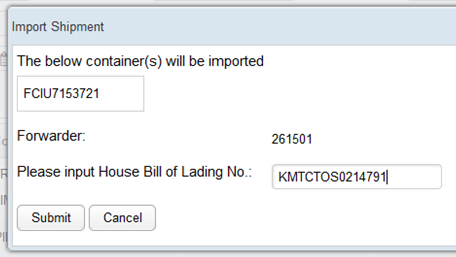
Input House Bill of Lading No. and click Submit button.

Submit Request:
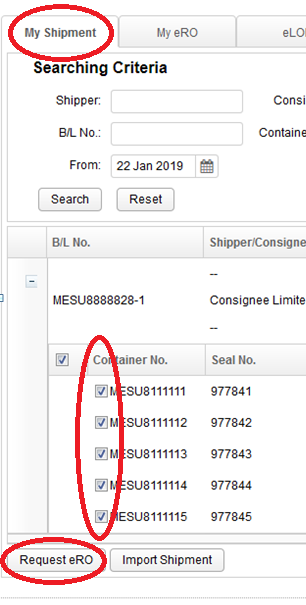
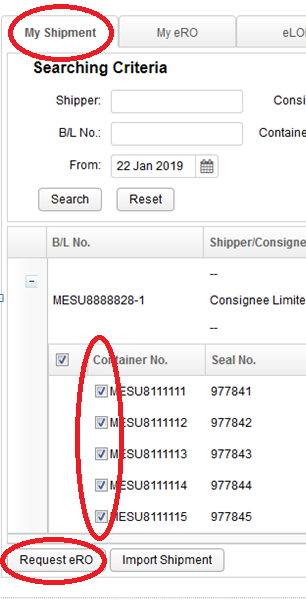
Under My Shipment tab, check the containers which you have just imported. Click Request eRO button.
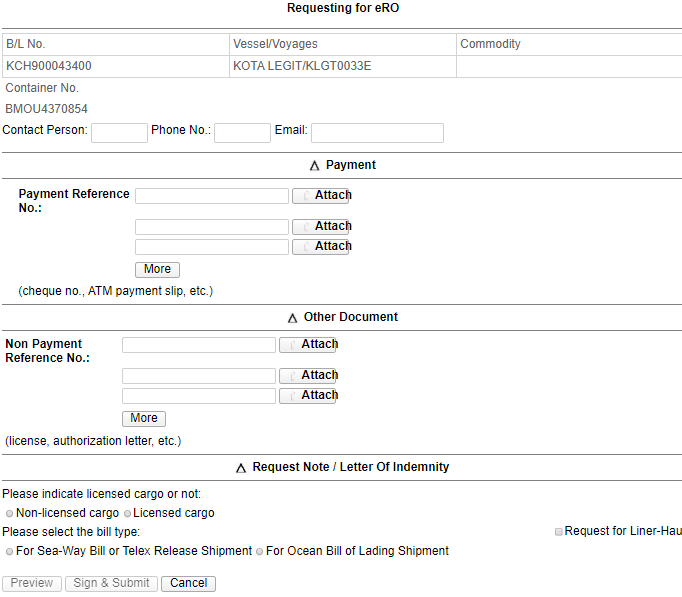
Fill out the details including Contact Person, Phone No. & Email. Upload payment and non-payment references. Select Non-licensed cargo or Licensed cargo. Check the box if you request liner-haul. Select For Ocean Bill of Lading Shipment. Click Preview.
Confirm that you have previewed the document. Click Submit.
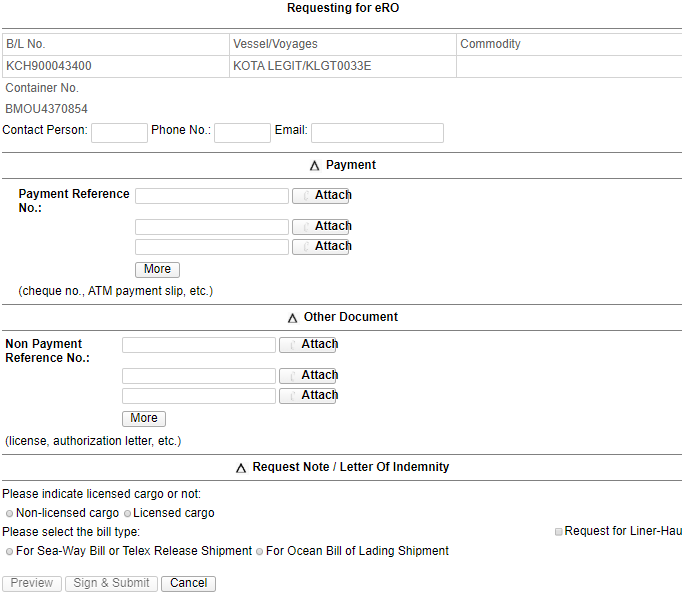

Await your liner to release the eRO on eRO platform.
I am holding a sea waybill or a telex release bill of lading. How do I obtain an eRO from my shipping line?
Login: Visit https://ero.oneport.com. Enter your Company ID,User ID & Password. Then, click Submit to log into the system.
Import Shipment:
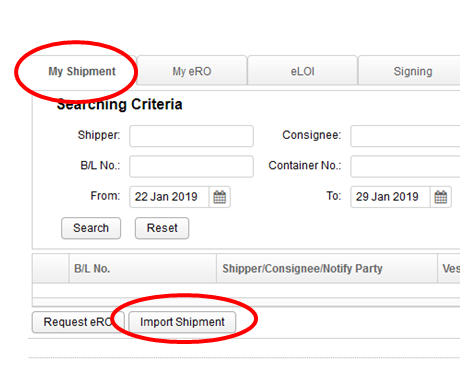
Click Import Shipment under My Shipment tab.
Click Liner or Forwarder. Then, select the liner/ the forwarder from pull-down menu.
If you choose ‘Liner’:
For import of single shipment, please enter bill of lading no. and any one of container nos. in order to import the entire bill. For multiple shipments, click Choose File to select an excel or text file to be imported. Click Upload button. Click Submit.

Click Import for preparing LOI.
If you choose ‘Forwarder’:
For import of single shipment, please enter the container no and click Add (please add all containers one-by-one). For multiple shipments, click Choose File to select an excel or text file to be imported. Click Upload button. Click Import for preparing LOI.
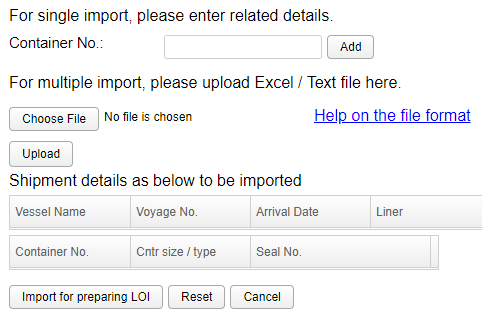
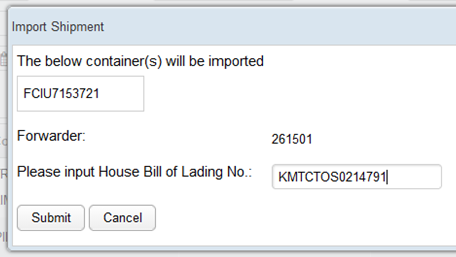
Input House Bill of Lading No. and click Submit button.
Submit Request:
under My Shipment tab, check the containers you have just imported. Click Request eRO button.
Fill out the details including Contact Person, Phone No. & Email. Upload payment & non-payment references. Select Non-licensed cargo or Licensed cargo. Check the box if you request liner-haul. Select For Sea-Waybill shipment or For Telex Release Shipment. Click Preview.
Confirm that you have previewed the document. Click Sign & Submit.
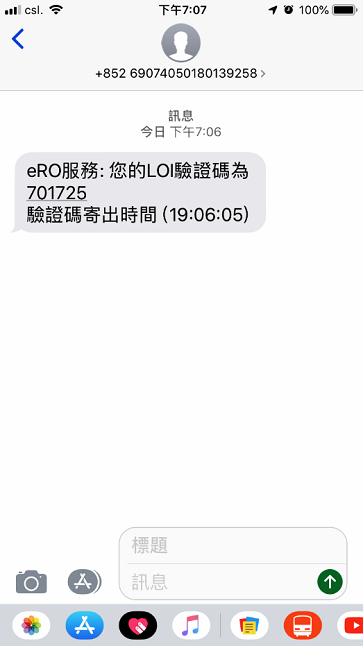
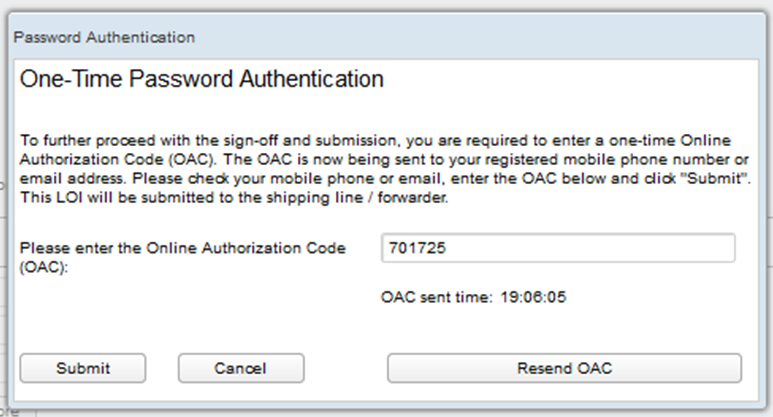
You will receive a one-time Online Authorization Code on your mobile phone or by email.
- Enter the code on eRO platform and Click Submit.

Await your liner to release the eRO on eRO platform.
I usually obtain release orders from freight forwarders. What should I do?
All the steps outlined on the above Questions 2 & 3 are the same, except that you should choose Forwarder instead of Liner when you import shipments.
I accidentally import a wrong shipment. How do I undo the action?
Login: Visit https://ero.oneport.com. Enter your Company ID,User ID & Password. Then, click Submit to log into the system.
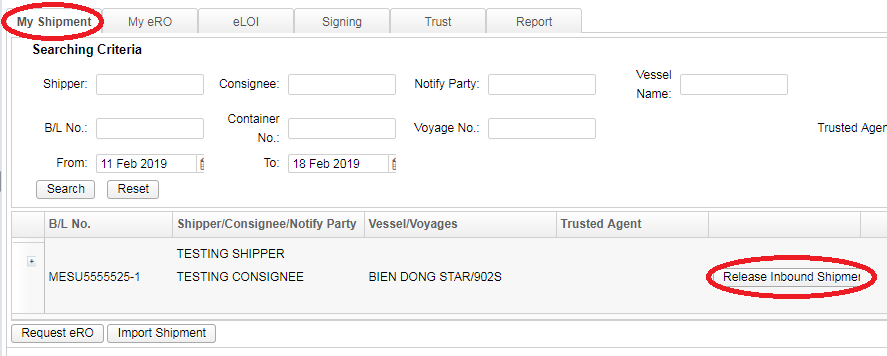
Under My Shipment tab, click the Release Inbound Shipment button next to the wrong shipment. Then, click OK to confirm.
I do not receive the one-time Online Authorization Code when I sign the eLOI. What should I do?
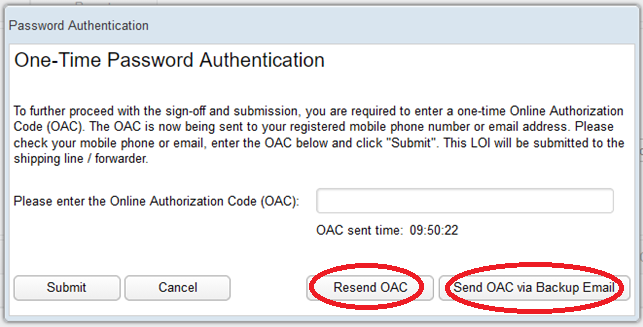
When you sign the eLOI, the following page will appear on eRO platform. Click Resend OAC button or Send OAC via Backup Email button as indicated by red circles below in order to re-send the Online Authorization Code. If you still could not obtain the code on your mobile phone or in your email inbox, please contact OnePort.
My eLOI contains a wrong container. Should I correct or cancel it?
Under this scenario, you have to cancel the eLOI and re-issue a new one.
Login: Visit https://ero.oneport.com. Enter your Company ID,User ID & Password. Then, click Submit to log into the system.
Cancel eLOI:
Click eLOI tab.
Select the relevant eLOI by checking the corresponding box.
Click Cancel eLOI button
Re-issue eLOI: please refer to the above Questions 2 & 3


What should I do if the liner refuses to issue an eRO due to payment amount dispute?
Your liner may notify you either by phone/email or through eRO system (by cancelling your eLOI).
Notification by phone/mail: If your liner notifies you by phone/ email, please firstly resolve the issue with the liner and then request the liner to release the eRO on eRO platform.
Notification by cancelling your eLOI on eRO platform: If your liner chooses to cancel your eLOI on eRO platform, you have to resubmit a new eLOI.
Directly contact your liner and settle the payment amount dispute;
Submit a new eLOI application and attach all payment references; and
Request your liner to release eRO on eRO platform.
Notification by rejecting your eLOI on eRO platform: If your liner chooses to reject your eLOI on eRO platform, you will receive an email notification and you have to amend the eLOI. For eLOI amendment, please refer to 10 of this System Guide.
What should I do if the liner refuses to issue an eRO due to an omission of a reference copy during submission of eLOI?
Same as Question 8 under Consignee Interface section of this System Guide.
What should I do if the eLOI I submitted contains incorrect information?
Once you have submitted an eLOI to your liner, you cannot change the information except adding payment/ non-payment references. To add additional payment/ non-payment references, please do the followings:
Login: Visit https://ero.oneport.com. Enter your Company ID,User ID & Password. Then, click Submit to log into the system.
Click eLOI tab.
Enter your searching criteria and click Search button. Check the relevant box to select the eLOI. Click Amend LOI/ Add Attachments button to further proceed.


How do I authorize my agent to do all the work for me?
Your customer (i.e. the consignee) is required to do a one-time authorization to grant you the authority to handle his containers. Your customer should do the followings on eRO platform.
Login: Visit https://ero.oneport.com. Enter Company ID, User ID & Password. Then, Click Submit to log into the system.
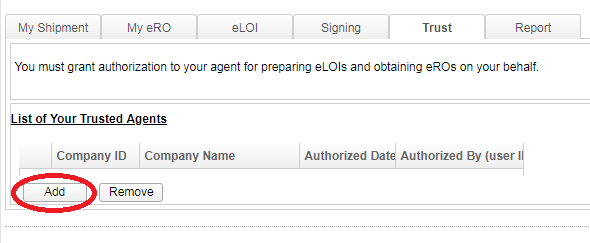
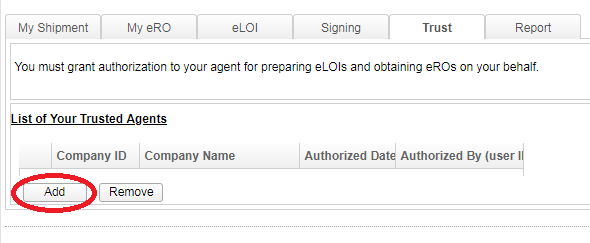
Click Trust tab.
Click Add button.
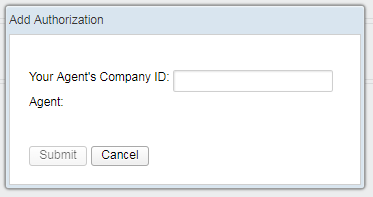
Enter the Company ID of the agent. Click Submit button.

Upon obtaining the authorization, your agent will be able to handle all eROs which belong to you. You should clearly communicate with your agent about which containers/ bills of lading your agent needs to handle on your behalf. Then, your agent can log into eRO platform to proceed.
How do I pass on the eRO to my trucking partner?
Login: Visit https://ero.oneport.com. Enter your Company ID,User ID & Password. Then, click Submit to log into the system.
Click My eRO tab.
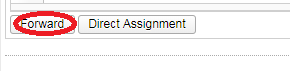
Enter your searching criteria and click Search button. Check the relevant box to select the eRO. Click Forward button.
For each laden pickup and empty return, enter the Company ID of your trucking company or select from the list. Click Forward button.
Select which party will pay for the Port Security Charge. Click Confirm button.
Once the eRO is forwarded to the trucking company, the trucking company will take charge to assign/ change driver and plate number.


If I mistakenly forward an eRO to a trucking company, what should I do to undo the action?
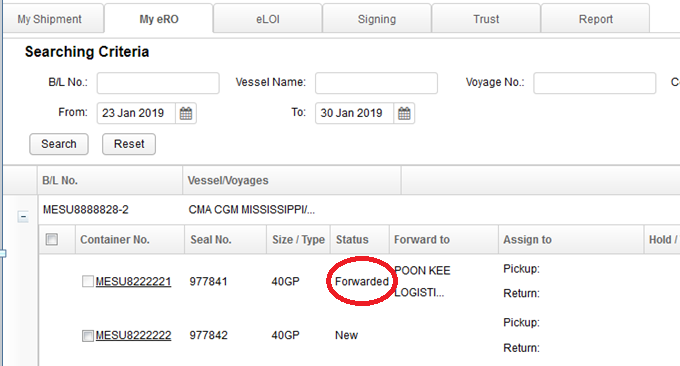
If you mistakenly forward an eRO, the Status of the container will appear as Forwarded.
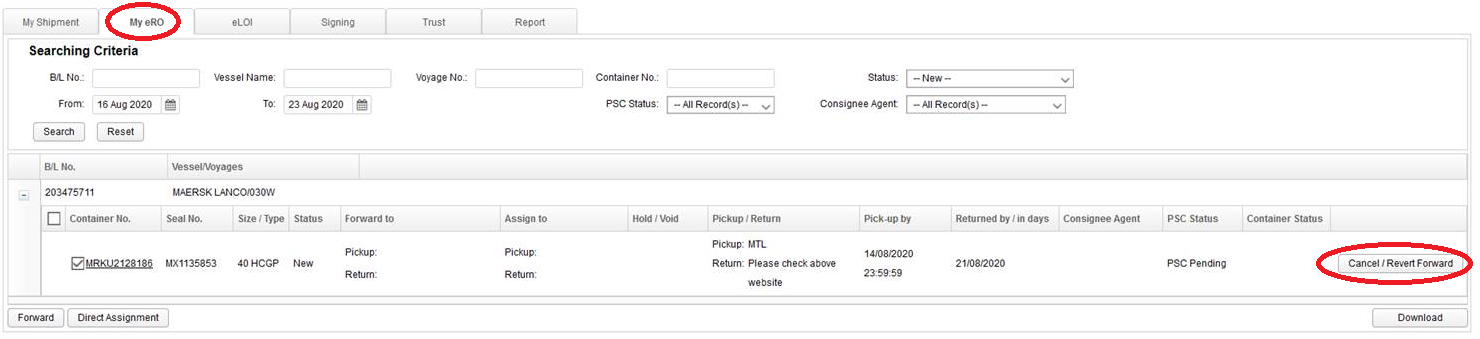
To undo, please go through Cancel/ Revert Forward action on eRO platform:
Login: Visit https://ero.oneport.com. Enter your Company ID,User ID & Password. Then, click Submit to log into the system.
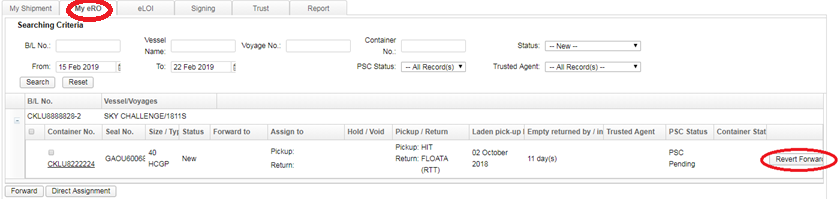
Under My eRO tab, click the relevant relevant Cancel/ Revert Forward button.
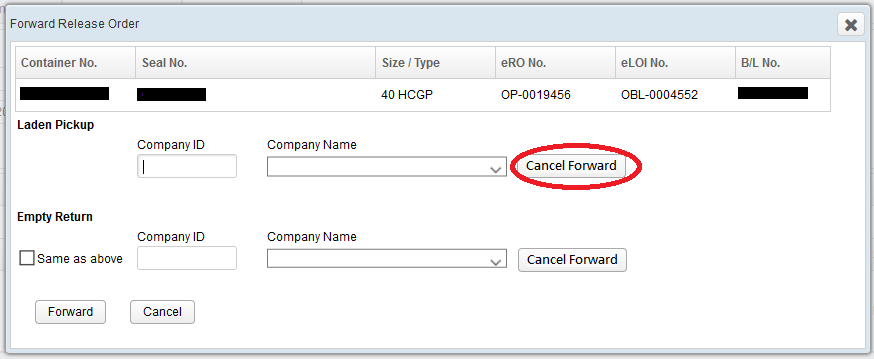
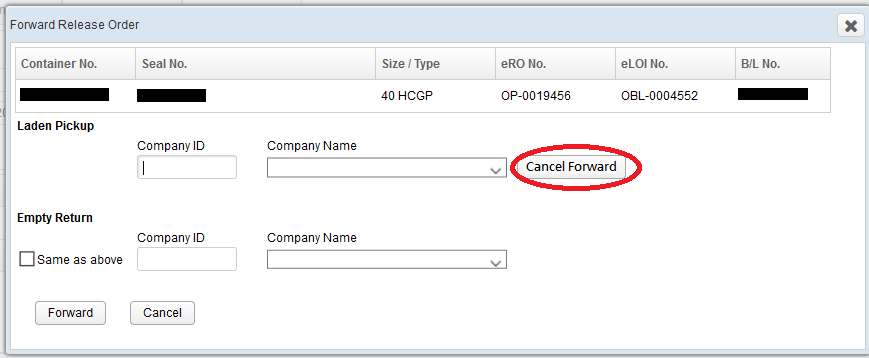
Click Cancel Forward.
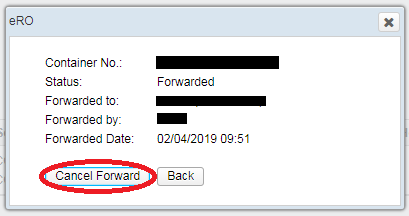
Counter-check the details and click Cancel Forward.
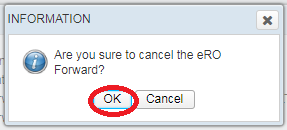
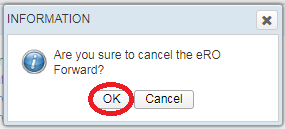
Click OK button.
What should I do to change a trucking company for handling a particular eRO?
Follow Question 13 to withdraw an eRO.
Follow Question 12 to forward the eRO again.
If I mistakenly forward an eRO to a consignee, what should I do to undo the action?
If you mistakenly forward an eRO to a consignee, you have to contact the consignee to do the followings on eRO platform.
Login: Visit https://ero.oneport.com. Enter Company ID, User ID & Password. Then, click Submit to log into the system.
Under My eRO tab, click the relevant Cancel/ Revert Forward button.
Click Cancel Forward.
Counter-check the details and click Cancel Forward.
Click OK button.

I have already sold a bill of lading to my business partner. What should I do to pass on the eRO?
To pass on the eRO, please do the followings on eRO platform:
Login: Visit https://ero.oneport.com. Enter Company ID, User ID & Password. Then, click Submit to log into the system.
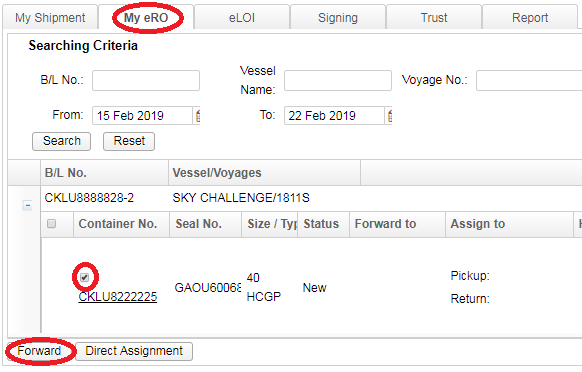
Under My eRO tab, check the relevant box to select the eRO. Click Forward button.
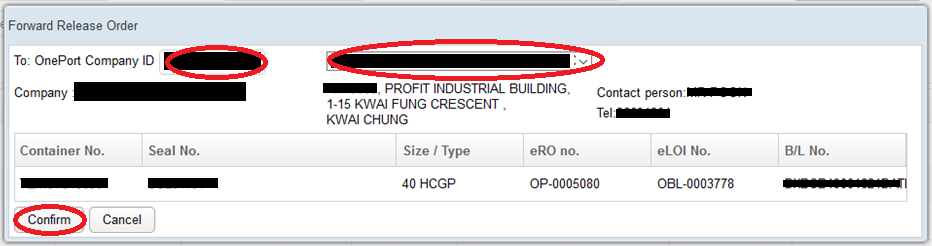
For each laden pickup and empty return, enter the OnePort Company ID of your business partner or select from the list. Click Confirm button.
A pop-up window will show a forward reference number. Enter the forward reference number on screen. Select whether you would like to disclose the name of consignee to recipient of the eRO. Then, click Confirm button.

What should I do to search and retrieve a particular eRO?
Login: Visit https://ero.oneport.com. Enter your Company ID,User ID & Password. Then, click Submit to log into the system.
Under My eRO tab, enter one or more searching criteria including bill of lading no., vessel name, voyage no., container no., status, date range, PSC Status & Trusted Agent. click Search button.

Can I print out each eRO copy for reference?
- Login: Visit https://ero.oneport.com. Enter your Company ID,User ID & Password. Then, click Submit to log into the system.
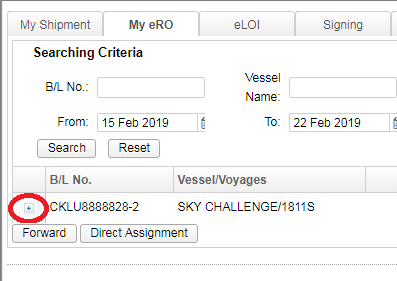
The corresponding bill will appear in My eRO tab.
Click the icon (as circled below) to extend the fields of a bill.
Click the container number to call for a pop-up window.
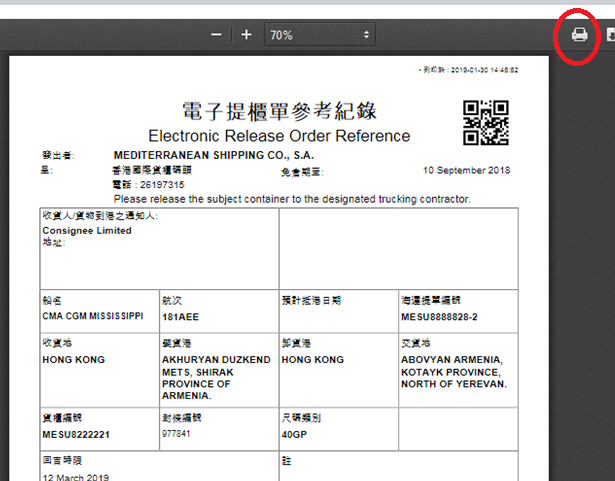
The following pop-up window will appear. Click print eRO button.
Click Print icon to proceed.


I am a consignee with a number of agents handling my bills of lading. What should I do?
You are required to grant authorization to all of your agents for handling your containers. Please do the followings on eRO platform for all of your agents:
Login: Visit https://ero.oneport.com. Enter your Company ID,User ID & Password. Then, click Submit to log into the system.
Click Trust tab.
Click Add button.
Enter the Company ID of the agent. Click Submit button.



Electronic Release Order (eRO) System Guide
| 一路通有限公司 |
| OnePort Limited |
| eRO 查詢熱線 : 3669-1406 |